Monitoring Dashboard
A monitoring dashboard with a REST API and an embedded React UI for real-time task monitoring and analytics.
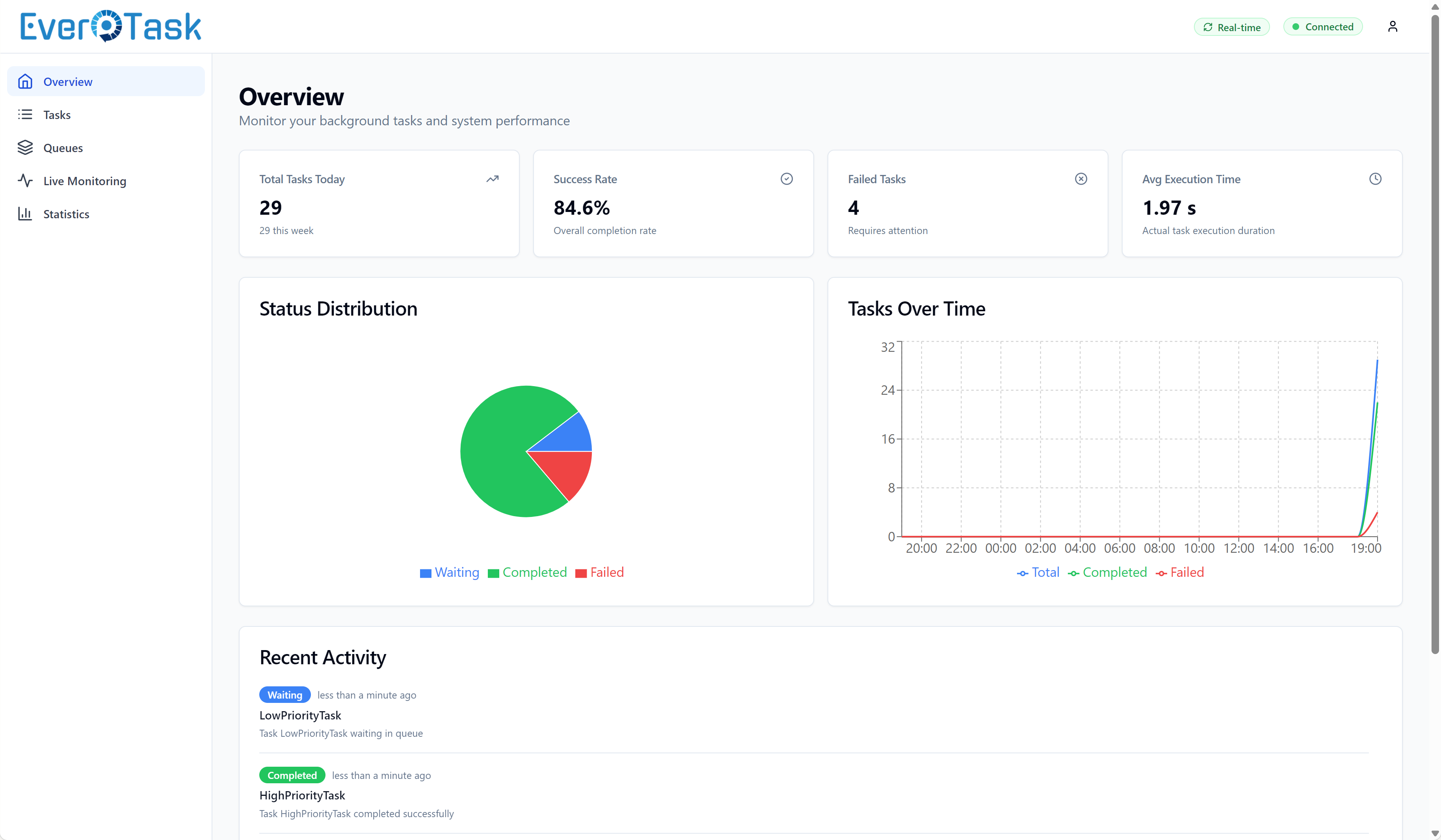
Table of Contents
- Overview
- Installation
- Quick Start
- Configuration
- Authentication
- Advanced Scenarios
- OpenAPI Document and Scalar UI
- Real-Time Monitoring
- Security Best Practices
- Integration Examples
- Documentation Resources
Overview
The EverTask Monitoring API provides:
- REST API for querying tasks, viewing statistics, and analyzing performance
- Embedded React Dashboard for visual monitoring
- Real-Time Updates via SignalR integration with throttling
- Task History with detailed execution logs and status changes
- Analytics including success rate trends, execution times, and task distribution
- Queue Metrics for multi-queue monitoring
- JWT Authentication for secure access
The monitoring system can be used in two modes:
- Full Mode (default): API + embedded dashboard UI
- API-Only Mode: REST API only, for custom frontend integrations
Feature complete for read-only monitoring
The dashboard and API are feature complete for read-only monitoring: observability and analytics over your task pipeline. The one exception is the three management endpoints, which a host has to enable and authorize explicitly.
What it covers:
- ✅ Complete read-only monitoring and observability
- ✅ Real-time task status updates via SignalR with event-driven cache invalidation
- ✅ Analytics (success rates, execution times, task distribution)
- ✅ Detailed execution logs visualization with filtering and export
- ✅ Multi-queue monitoring and advanced task filtering
- ✅ Audit trail visualization (status history, execution runs)
- ✅ Terminal-style log viewer with color-coded severity levels
-
✅ Durable occurrences: the backlog of every schedule by state, its lag, and the occurrences of a schedule with the misfire each of them stands for
- ✅ Requeue, resume and cancel over the API, behind an authorization of their own (
EnableManagementEndpoints, off by default)
Not there yet:
- ⏳ Buttons for the three management operations in the dashboard itself
- ⏳ Runtime parameter modification for queued/scheduled tasks
- ⏳ Queue management operations (pause/resume queues)
- ⏳ Bulk task operations
Note: every endpoint of the REST API is read-only except the three under
/api/management, and those do not exist until a host setsEnableManagementEndpoints = trueAND a caller carries the operate role. The dashboard credential never does. See Management Endpoints. Changing a schedule from application code staysITaskScheduleManager, behind your own authorization.
Installation
Install the monitoring API package:
dotnet add package EverTask.Monitor.Api
The package automatically includes:
- REST API controllers
- Embedded React dashboard
- SignalR monitoring integration
Quick Start
Add monitoring to your application:
using EverTask;
using EverTask.Monitor.Api.Extensions;

var builder = WebApplication.CreateBuilder(args);

// Configure EverTask with monitoring
builder.Services.AddEverTask(opt =>
{
    opt.RegisterTasksFromAssembly(typeof(Program).Assembly);
})
.AddSqlServerStorage(connectionString)
.AddMonitoringApi(options =>
{
    options.EnableUI = true;
    options.Username = "admin";
    options.Password = "admin";
    options.EnableAuthentication = true;
});

var app = builder.Build();

// Map monitoring endpoints
app.MapEverTaskApi();

app.Run();
Access the dashboard:
- Dashboard UI:
http://localhost:5000/evertask-monitoring - API Endpoints:
http://localhost:5000/evertask-monitoring/api - Credentials:
admin/admin
Configuration
EverTaskApiOptions
All configuration is done through the EverTaskApiOptions class passed to AddMonitoringApi():
.AddMonitoringApi(options =>
{
    // Base path for API and UI is fixed to "/evertask-monitoring"
    // options.BasePath is read-only

    // Enable/disable embedded dashboard (default: true)
    options.EnableUI = true;

    // JWT Authentication credentials
    options.Username = "admin";         // Default: "admin"
    options.Password = "admin";         // Default: "admin"

    // Authentication settings
    options.EnableAuthentication = true;          // Default: true

    // SignalR hub path for real-time updates (fixed path)
    // Note: SignalRHubPath is now fixed to "/evertask-monitoring/hub" and cannot be changed

    // Dashboard auto-refresh debounce (milliseconds)
    options.EventDebounceMs = 1000;                // Default: 1000 (1 second)

    // CORS settings
    options.EnableCors = true;                     // Default: true
    options.CorsAllowedOrigins = new[] {           // Default: empty (allow all)
        "https://myapp.com"
    };
});
Configuration Properties
| Property | Type | Default | Description |
|---|---|---|---|
EnableUI | bool | true | Enable embedded dashboard UI |
EnableOpenApiDocument | bool | false | Serve the monitoring OpenAPI document (net9.0+; auto-enabled by the Scalar package) |
EnableSwagger | bool | false | Obsolete no-op since 4.0.0 (use EnableOpenApiDocument) |
Username | string | "admin" | JWT authentication username |
Password | string | "admin" | JWT authentication password |
JwtSecret | string? | auto-generated | Secret key for signing JWT tokens (min 256 bits recommended) |
JwtIssuer | string | "EverTask.Monitor.Api" | JWT token issuer |
JwtAudience | string | "EverTask.Monitor.Api" | JWT token audience |
JwtExpirationHours | int | 8 | JWT token expiration time in hours |
EnableAuthentication | bool | true | Enable JWT authentication |
EnableCors | bool | true | Apply the EverTaskMonitoringApi CORS policy to requests under /evertask-monitoring (since 4.0.0; the host pipeline is untouched) |
CorsAllowedOrigins | string[] | [] | CORS allowed origins (empty = allow all) |
AllowedIpAddresses | string[] | [] | IP whitelist (empty = allow all IPs). Supports IPv4/IPv6 and CIDR notation |
MagicLinkToken | string? | null | Static token for magic link access. If set, enables /api/auth/magic endpoint for instant authentication |
EventDebounceMs | int | 1000 | Debounce time in milliseconds for SignalR event-driven cache invalidation in the dashboard. Higher values reduce API load during task bursts but introduce slight UI update delays |
Authentication
The monitoring API uses JWT (JSON Web Token) authentication for secure access.
Default Credentials
Username: admin
Password: admin
Warning: Always change the default credentials in production!
Authentication Flow
- Login: POST credentials to
/evertask-monitoring/api/auth/loginto obtain a JWT token - Use Token: Include the token in the
Authorization: Bearer {token}header for all API requests - Token Expiration: Tokens expire after 8 hours by default (configurable via
JwtExpirationHours)
Configuration
.AddMonitoringApi(options =>
{
    // Enable authentication (default: true)
    options.EnableAuthentication = true;

    // Set custom credentials
    options.Username = "monitor_user";
    options.Password = "secure_password_123";

    // JWT configuration
    options.JwtSecret = "your-256-bit-secret-key-here";  // Auto-generated if not provided
    options.JwtExpirationHours = 8;                       // Default: 8 hours
    options.JwtIssuer = "MyApp";                          // Default: "EverTask.Monitor.Api"
    options.JwtAudience = "MyApp";                        // Default: "EverTask.Monitor.Api"
});
Environment Variables
Store credentials and secrets securely using environment variables:
.AddMonitoringApi(options =>
{
    options.Username = Environment.GetEnvironmentVariable("MONITOR_USERNAME") ?? "admin";
    options.Password = Environment.GetEnvironmentVariable("MONITOR_PASSWORD") ?? "admin";
    options.JwtSecret = Environment.GetEnvironmentVariable("JWT_SECRET");  // Auto-generated if null
});
# Set environment variables
export MONITOR_USERNAME=admin
export MONITOR_PASSWORD=my_secure_password
export JWT_SECRET=your-strong-random-secret-min-256-bits
Login Endpoint
POST to /evertask-monitoring/api/auth/login to obtain a JWT token:
Request:
{
  "username": "admin",
  "password": "admin"
}
Response:
{
  "token": "eyJhbGciOiJIUzI1NiIsInR5cCI6IkpXVCJ9...",
  "expiresAt": "2025-01-16T02:00:00Z",
  "username": "admin"
}
Login Rate Limiting
The login endpoint and the magic-link exchange endpoints (/api/auth/magic, since 4.0.0) carry the evertask-monitoring-login rate-limit policy: 5 attempts per 15 minutes per client IP, 429 once exhausted. The policy is registered by the package but ASP.NET Core enforces it only when your pipeline runs app.UseRateLimiter() (after UseRouting()). The namespaced name keeps it separate from any login policy your application defines.
Using the Token
Include the token in the Authorization header for all API requests:
curl -H "Authorization: Bearer eyJhbGciOiJIUzI1NiIsInR5cCI6IkpXVCJ9..." \
     http://localhost:5000/evertask-monitoring/api/tasks
Disable Authentication
For development environments only:
.AddMonitoringApi(options =>
{
    options.EnableAuthentication = false;  // No authentication required
});
Magic Link Access
For external system integration (embedding in other dashboards, direct access from internal tools), you can configure a static magic link token that provides instant access without login:
.AddMonitoringApi(options =>
{
    options.EnableAuthentication = true;
    options.MagicLinkToken = "your-very-long-secret-token-here-min-32-chars";
});
Access URL (since 4.0.0, put the token in the URL fragment):
https://your-server/evertask-monitoring/magic#token=your-very-long-secret-token-here-min-32-chars
When a user visits this URL, the dashboard reads the token from the fragment, exchanges it with POST /api/auth/magic (token in the request body) and redirects to the dashboard. The magic link generates a standard JWT session token, so all subsequent requests work normally.
The older ?token= query form still works, but read the next section before using it.
Keep the token out of your logs
MagicLinkToken is a static credential: it never expires and a leaked copy keeps working until you rotate the setting. Anything that records request URLs will store it verbatim if it travels in the query string:
- Serilog’s
UseSerilogRequestLogging()logsRequestPathfromIHttpRequestFeature.RawTarget, which includes the query string. Every dashboard open via?token=writes the token into your application log. - Reverse proxies (nginx, IIS, Azure App Service HTTP logs, API gateways) log the full request line.
- The browser keeps the URL in its history.
The fragment (#token=) is never sent to the server, so none of those components see it. With the fragment form the token exists only in the browser that already has it and in the POST body of the exchange call, which request loggers do not record. If you link to the dashboard from your own application, prefer a server-side redirect to the fragment URL (the fragment survives a 302): the token stays out of your frontend bundle and your HTML.
If you must keep the ?token= form (older bookmarks, tooling you cannot change), exclude the monitoring path from request logging in your host, for example with Serilog:
app.UseWhen(
    ctx => !ctx.Request.Path.StartsWithSegments("/evertask-monitoring"),
    branch => branch.UseSerilogRequestLogging());
The same applies to GET /api/auth/magic?token=: it is deprecated (still served for compatibility) and the dashboard no longer calls it.
Use cases:
- Embedding in internal dashboards or portals
- Bookmarking for quick access
- Integration with other monitoring systems
- Sharing access with team members without credential management
Security notes:
- Use a long, random token (32+ characters recommended)
- The token never expires - change it in configuration to revoke access
- Use the
#token=fragment form; treat any?token=URL as a leaked credential once it has hit a log - The exchange endpoints share the login rate limit (5 attempts per 15 minutes per client IP) when the host runs
UseRateLimiter() - Combine with IP whitelist (
AllowedIpAddresses) for additional security - Always use HTTPS in production
Generate a secure token:
# PowerShell
[Convert]::ToBase64String((1..32 | ForEach-Object { Get-Random -Maximum 256 }) -as [byte[]])
If MagicLinkToken is not configured, the endpoint returns 404 and the feature is disabled.
Advanced Scenarios
API-Only Mode
Disable the embedded UI to use only the REST API:
.AddMonitoringApi(options =>
{
    options.EnableUI = false;  // Disable embedded dashboard
});
This is useful when:
- Building a custom frontend
- Integrating with existing monitoring systems
- Mobile app integration
- Third-party dashboard integration
CORS Configuration
Since 4.0.0 the CORS policy applies automatically to requests under /evertask-monitoring (API, hub and UI) and only there: your application’s CORS setup, or its absence, is untouched and there is nothing to add to the pipeline.
Configure CORS for custom frontend applications:
.AddMonitoringApi(options =>
{
    options.EnableCors = true;
    options.CorsAllowedOrigins = new[]
    {
        "https://myapp.com",
        "https://dashboard.myapp.com"
    };
});
Allow all origins (development only):
.AddMonitoringApi(options =>
{
    options.EnableCors = true;
    options.CorsAllowedOrigins = Array.Empty<string>();  // Allow all origins
});
Environment-Specific Configuration
Adjust configuration based on environment:
builder.Services.AddEverTask(opt =>
{
    opt.RegisterTasksFromAssembly(typeof(Program).Assembly);
})
.AddSqlServerStorage(connectionString)
.AddMonitoringApi(options =>
{
    options.EnableUI = true;

    if (builder.Environment.IsDevelopment())
    {
        // Development: Disable authentication
        options.EnableAuthentication = false;
        options.EnableCors = true;
        options.CorsAllowedOrigins = Array.Empty<string>();
    }
    else
    {
        // Production: Strict security
        options.EnableAuthentication = true;
        options.Username = Environment.GetEnvironmentVariable("MONITOR_USERNAME") ?? "admin";
        options.Password = Environment.GetEnvironmentVariable("MONITOR_PASSWORD") ?? throw new InvalidOperationException("MONITOR_PASSWORD not set");
        options.JwtSecret = Environment.GetEnvironmentVariable("JWT_SECRET") ?? throw new InvalidOperationException("JWT_SECRET not set");
        options.EnableCors = true;
        options.CorsAllowedOrigins = new[] { "https://myapp.com" };
    }
});
SignalR Hub Path
The SignalR hub path is fixed to /evertask-monitoring/hub and cannot be customized, so the API and the embedded dashboard UI always agree on it.
Standalone API Registration
Use the monitoring API without EverTask integration (for custom scenarios):
// In Program.cs
builder.Services.AddEverTaskMonitoringApiStandalone(options =>
{
    options.EnableUI = false;
});

// Note: You must register ITaskStorage manually
builder.Services.AddSingleton<ITaskStorage, MyCustomStorage>();
The standalone registration does not configure SignalR monitoring. AddSignalRMonitoring is only available on EverTaskServiceBuilder (the chain returned by AddEverTask), so a standalone API has no live event feed: dashboard data refreshes on poll rather than on push. To get live updates, register the API through AddEverTask(...).AddMonitoringApi(...), which wires up the SignalR monitor for you.
OpenAPI Document and Scalar UI
The monitoring API can serve its own OpenAPI document, generated with the built-in ASP.NET Core generator (Microsoft.AspNetCore.OpenApi) and served under the monitoring base path. Nothing is shared with your application’s OpenAPI, Swagger, or Scalar setup: the monitoring controllers carry their own ApiExplorer group (evertask-monitoring), so they never appear in your documents, and your endpoints never appear in the monitoring document.
Requires net9.0 or later: the built-in generator does not exist on net8.0, where enabling the document is a no-op (the bundled analyzer reports ET0008 if you try).
Enable the document
.AddMonitoringApi(options =>
{
    options.EnableOpenApiDocument = true;
});
The document is served at /evertask-monitoring/openapi/evertask-monitoring.json.
Scalar UI (optional package)
Install EverTask.Monitor.Api.Scalar and chain one call after AddMonitoringApi():
.AddMonitoringApi(options => { /* ... */ })
.AddMonitoringApiScalar();
This serves an interactive Scalar API reference at /evertask-monitoring/scalar and enables the OpenAPI document automatically. Your application can run its own Scalar (or Swagger UI) at its usual paths without any conflict.
Showing the monitoring API inside your own Swagger/OpenAPI UI
Not needed for the setup above, but if you prefer one UI for everything, declare a document that matches the monitoring group name. With the host’s own Swashbuckle:
builder.Services.AddSwaggerGen(c =>
{
    c.SwaggerDoc("v1", new() { Title = "My Application API", Version = "v1" });
    c.SwaggerDoc("evertask-monitoring", new() { Title = "EverTask Monitoring API", Version = "v1" });
});

app.UseSwaggerUI(c =>
{
    c.SwaggerEndpoint("/swagger/v1/swagger.json", "My Application API");
    c.SwaggerEndpoint("/swagger/evertask-monitoring/swagger.json", "EverTask Monitoring API");
});
Swashbuckle’s default inclusion rule matches endpoints to documents by group name, so the monitoring endpoints land in the evertask-monitoring document and stay out of v1 with no custom predicates.
Migrating from 3.11.x
Up to 3.11.0 the package depended on Swashbuckle and hooked into the host’s SwaggerGen configuration via EnableSwagger. That dependency crashed .NET 10 hosts using the built-in OpenAPI stack at startup (ReflectionTypeLoadException inside MapControllers()) and is gone in 4.0.0. EnableSwagger is now an obsolete no-op: replace it with EnableOpenApiDocument = true (or the Scalar package), and remove the /swagger/evertask-monitoring/swagger.json endpoint from your UseSwaggerUI call unless you opt into the recipe above.
Also since 4.0.0 the monitoring route prefix applies only to the package’s own controllers. Earlier versions accidentally prepended /evertask-monitoring to every controller in the host application; if you relied on those prefixed routes, they are now back at their natural paths.
Real-Time Monitoring
The dashboard integrates with EverTask’s SignalR monitoring.
Automatic Configuration
SignalR monitoring is automatically configured when you add the monitoring API. The hub path is fixed to /evertask-monitoring/hub and cannot be changed.
If SignalR monitoring wasn’t previously registered, it’s added automatically.
Manual SignalR Configuration
If you want more control over SignalR settings:
builder.Services.AddEverTask(opt =>
{
    opt.RegisterTasksFromAssembly(typeof(Program).Assembly);
})
.AddSqlServerStorage(connectionString)
.AddSignalRMonitoring(opt =>
{
    opt.IncludeExecutionLogs = true;  // Include logs in SignalR events
})
.AddMonitoringApi();
SignalR Events
The dashboard receives real-time events for:
- Task Started: When a task begins execution
- Task Completed: When a task finishes successfully
- Task Failed: When a task fails
- Task Cancelled: When a task is cancelled
- Task Timeout: When a task exceeds its timeout
Custom SignalR Client
Connect to the SignalR hub from your own application:
With JWT Authentication (when EnableAuthentication = true):\
import * as signalR from '@microsoft/signalr';

// First, obtain JWT token via login
const loginResponse = await fetch('/evertask-monitoring/api/auth/login', {
    method: 'POST',
    headers: { 'Content-Type': 'application/json' },
    body: JSON.stringify({ username: 'admin', password: 'admin' })
});
const { token } = await loginResponse.json();

// Connect to SignalR hub with JWT token
const connection = new signalR.HubConnectionBuilder()
    .withUrl('/evertask-monitoring/hub', {
        accessTokenFactory: () => token  // Pass JWT token for authentication
    })
    .withAutomaticReconnect()
    .build();

connection.on('EverTaskEvent', (eventData) => {
    console.log('Task event:', eventData);
    // eventData contains: TaskId, EventDateUtc, Severity, TaskType, Message, etc.
});

await connection.start();
Without Authentication (when EnableAuthentication = false or IP whitelist only):
const connection = new signalR.HubConnectionBuilder()
    .withUrl('/evertask-monitoring/hub')
    .withAutomaticReconnect()
    .build();

connection.on('EverTaskEvent', (eventData) => {
    console.log('Task event:', eventData);
});

await connection.start();
Note: The embedded React dashboard automatically handles JWT authentication. This is only needed for custom client integrations.
Security Best Practices
1. Change Default Credentials
Always change the default username and password:
.AddMonitoringApi(options =>
{
    options.Username = "your_username";
    options.Password = "strong_password_here";
});
2. Use HTTPS in Production
Always use HTTPS for monitoring endpoints in production:
var app = builder.Build();

if (!app.Environment.IsDevelopment())
{
    app.UseHttpsRedirection();
}

app.MapEverTaskApi();
3. Restrict CORS Origins
Don’t allow all origins in production:
.AddMonitoringApi(options =>
{
    options.EnableCors = true;
    options.CorsAllowedOrigins = new[]
    {
        "https://app.example.com",
        "https://dashboard.example.com"
    };
});
4. Use Environment Variables
Never hardcode credentials:
.AddMonitoringApi(options =>
{
    options.Username = Environment.GetEnvironmentVariable("MONITOR_USERNAME")
        ?? throw new InvalidOperationException("MONITOR_USERNAME not set");
    options.Password = Environment.GetEnvironmentVariable("MONITOR_PASSWORD")
        ?? throw new InvalidOperationException("MONITOR_PASSWORD not set");
});
5. Configure IP Whitelist
Restrict access to specific IP addresses or CIDR ranges. This protects both the API and SignalR hub:
.AddMonitoringApi(options =>
{
    // Only allow access from specific IPs
    options.AllowedIpAddresses = new[]
    {
        "192.168.1.100",           // Specific IP
        "10.0.0.0/8",              // Private network (CIDR notation)
        "172.16.0.0/12",           // Another private range
        "::1"                      // IPv6 localhost
    };
});
Important notes:
- When
AllowedIpAddressesis empty (default), all IPs are allowed - Supports IPv4, IPv6, and CIDR notation (e.g.,
192.168.0.0/24) - Checks
X-Forwarded-Forheader first (reverse proxy scenarios) - Returns 403 Forbidden if IP is not in whitelist
- IP check happens before authentication (more efficient)
Reverse proxy example:
// If behind nginx/IIS, client IP comes from X-Forwarded-For header
options.AllowedIpAddresses = new[]
{
    "203.0.113.0/24"  // Allow only from specific public IP range
};
6. Limit Network Access
Use firewall rules or network policies to restrict access:
// In appsettings.json
{
  "Kestrel": {
    "Endpoints": {
      "Monitoring": {
        "Url": "http://localhost:5001",  // Only accessible locally
        "Protocols": "Http1"
      }
    }
  }
}
7. Disable in Production (Optional)
If monitoring is only needed for development:
if (builder.Environment.IsDevelopment())
{
    builder.Services.AddEverTask(opt => ...)
        .AddMonitoringApi();
}
8. Rate Limiting
Consider adding rate limiting to monitoring endpoints:
builder.Services.AddRateLimiter(options =>
{
    options.AddFixedWindowLimiter("monitoring", opt =>
    {
        opt.Window = TimeSpan.FromSeconds(10);
        opt.PermitLimit = 100;
    });
});

app.UseRateLimiter();
Integration Examples
Console Application
using EverTask;
using EverTask.Monitor.Api.Extensions;

var builder = WebApplication.CreateBuilder(args);

builder.Services.AddEverTask(opt =>
{
    opt.RegisterTasksFromAssembly(typeof(Program).Assembly);
})
.AddMemoryStorage()
.AddMonitoringApi(options =>
{
    options.Username = "admin";
    options.Password = "admin";
});

var app = builder.Build();
app.MapEverTaskApi();
await app.StartAsync();

Console.WriteLine("Dashboard: http://localhost:5000/evertask-monitoring");
Console.WriteLine("Credentials: admin / admin");

// Your application logic...
Console.ReadKey();
await app.StopAsync();
ASP.NET Core Web Application
var builder = WebApplication.CreateBuilder(args);

builder.Services.AddEverTask(opt =>
{
    opt.RegisterTasksFromAssembly(typeof(Program).Assembly);
})
.AddSqlServerStorage(builder.Configuration.GetConnectionString("EverTaskDb")!)
.AddMonitoringApi(options =>
{
    options.EnableAuthentication = !builder.Environment.IsDevelopment();
});

var app = builder.Build();

app.UseHttpsRedirection();
app.UseStaticFiles();
app.UseRouting();
app.UseAuthorization();

app.MapControllers();
app.MapEverTaskApi();  // Add monitoring endpoints

app.Run();
Worker Service
var builder = Host.CreateApplicationBuilder(args);

builder.Services.AddEverTask(opt =>
{
    opt.RegisterTasksFromAssembly(typeof(Program).Assembly);
})
.AddSqlServerStorage(builder.Configuration.GetConnectionString("EverTaskDb")!)
.AddMonitoringApi();

// Add web server for monitoring
builder.Services.Configure<HostOptions>(options =>
{
    options.BackgroundServiceExceptionBehavior = BackgroundServiceExceptionBehavior.Ignore;
});

builder.Services.AddSingleton<IHostedService>(sp =>
{
    var webApp = WebApplication.CreateBuilder().Build();
    webApp.MapEverTaskApi();
    return new WebHostingService(webApp);
});

var host = builder.Build();
host.Run();
Custom Frontend Integration
Use the REST API with your own frontend:
// TypeScript example
import axios from 'axios';

const API_BASE = 'http://localhost:5000/evertask-monitoring/api';

// Login to get JWT token
const loginResponse = await axios.post(`${API_BASE}/auth/login`, {
    username: 'admin',
    password: 'admin'
});

const token = loginResponse.data.token;
console.log('Token expires at:', loginResponse.data.expiresAt);

// Create axios instance with JWT token
const api = axios.create({
    baseURL: API_BASE,
    headers: {
        'Authorization': `Bearer ${token}`
    }
});

// Get tasks
const response = await api.get('/tasks', {
    params: {
        status: 'Completed',
        page: 1,
        pageSize: 20
    }
});

console.log('Tasks:', response.data.tasks);
console.log('Total:', response.data.totalCount);

// Get task details
const task = await api.get(`/tasks/${taskId}`);
console.log('Task:', task.data);

// Get dashboard overview
const overview = await api.get('/dashboard/overview', {
    params: { range: 'Today' }
});

console.log('Total tasks:', overview.data.totalTasks);
console.log('Success rate:', overview.data.successRate);
Documentation Resources
The monitoring documentation is split into three guides:
📊 API Reference
Complete REST API documentation with all endpoints:
- Tasks endpoints (list, details, history)
- Dashboard endpoints (overview, activity)
- Queue endpoints (metrics, health)
- Statistics endpoints (trends, analytics)
- Request/response examples and query parameters
🎨 Dashboard UI Guide
Visual interface documentation with screenshots:
- Overview page (metrics, charts, activity feed)
- Task list view (filtering, sorting, pagination)
- Task detail view (parameters, history, logs)
- Queue metrics (distribution, success rates)
- Statistics & analytics (trends, performance)
- Complete screenshot gallery
🔌 Custom Event Monitoring
Build custom integrations using the event system:
- Task lifecycle events
- DIY SignalR integration
- Third-party monitoring (Application Insights, Prometheus)
- Custom alerts (Slack, email, PagerDuty)
- Serilog integration
Next Steps
- API Reference - Complete REST API documentation
- Dashboard UI Guide - UI features and screenshots
- Custom Event Monitoring - Event-based monitoring and custom integrations
- Configuration Reference - All configuration options
- Architecture - How monitoring works internally